
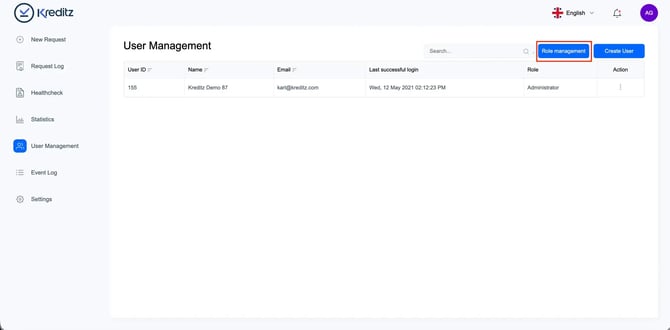
To navigate to Role Management, click User Management in the left-hand navigation menu, then select Role Management in the upper-right corner of the page.
Customizing Roles
Role Management allows Administrators to create and customize user roles with specific access permissions. This ensures each role has the appropriate level of access based on your organization’s needs.
💡 Example:
By default, the Administrator Officer role includes access to:
-
New Request
-
Request Log
-
Statistics
-
Settings
If needed, an Administrator can modify this role to grant additional access - for example, enabling access to the Event Log:
-
New Request
-
Request Log
-
Statistics
-
Event Log - Access granted
-
Settings
Create and Edit Roles
Administrators can create completely new roles or adjust existing ones by defining which sections and features each role should have access to.
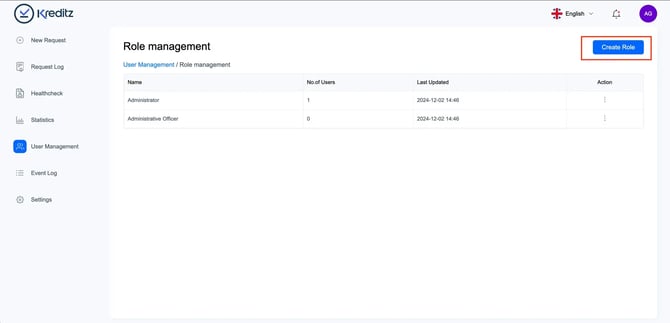
To create a new role, go to Role Management and click Create Role on the right-hand side of the page.
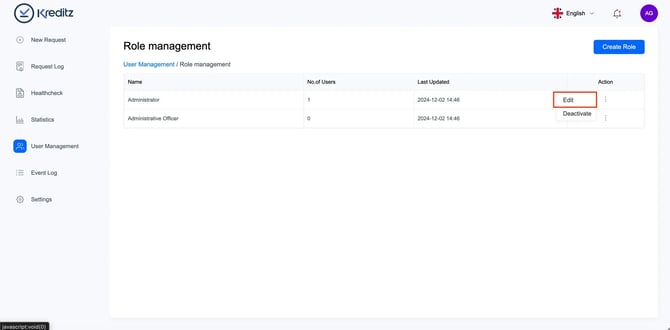
To edit an existing role, open the Action menu for the role you want to modify and click Edit to update its permissions or details.
Role Permissions
When creating or editing a role, you will need to select which permissions the role should include. These permissions determine what sections and functionality users assigned to that role will have access to within Vista.
Permissions correspond directly to specific areas or actions in the system — enabling a permission gives the role access to that feature.
|
Permission |
Gives access to |
Description |
|
New request |
New request section |
The New request section in Vista |
|
Statistics |
Statistics section |
The Statistics section in Vista |
|
Users List |
User List |
The users list in User Management |
|
Manage Users |
Manage users in User Management |
Access to edit users in the list |
|
Role List |
User Management - Role Management - Role list |
Access to to Role management in User Manage section. Being able to the list with options of all the roles that have been created |
|
Manage Roles |
User Management - Role Management - Manage roles |
Access to create and edit user roles |
|
Event Log |
Event Log section |
Gives access to the Event Log section |
|
Settings |
Settings section |
Gives access to the Settings section |
|
Open certificate |
Opening certificates |
Gives role access to open Certificates in Request log list |
|
Delete certificate |
Deleting certificates |
Gives role access to delete Certificates in Request log list |
|
Change security settings |
Security settings inside Settings section |
Give access to the Security settings inside the Settings section |
|
Change settings to send Email/SMS notification |
Basic settings inside Settings section |
Gives access to Basic settings |
|
All |
All - Tab |
Access to All tab in the Request Log list |
|
Unread |
Unread - Tab |
Access to Unread tab in the Request Log list |
|
Pending |
Pending - Tab |
Access to Pending tab in the Request Log list |
|
Expired |
Expired - Tab |
Access to Expired tab in the Request Log list |
|
Cancelled |
Cancelled - Tab |
Access to Cancelled tab in the Request Log list |
|
Processing |
Processing - Tab |
Access to Processing tab in the Request Log list |
|
Accepted |
Accepted - Tab |
Access to Accepted tab in the Request Log list |
|
Switch to sub accounts |
Ability to switch to sub accounts |
If the account is a Main Account with linked Sub Accounts, enabling this permission allows the user role to switch between the main account and its sub accounts. For more information, see Main and Sub Accounts. |
|
Sub account certificate access |
Ability to switch to sub accounts and view the certificates in the sub account |
If the account is a Main Account with linked Sub Accounts, enabling this permission allows the user role to view certificates stored in the connected sub accounts. For more details, see Main and Sub Accounts. |
|
Overview |
Overview - Tab |
Access to the Overview tab in a certificate |
|
Account Information |
Account Information - Tab |
Access to the Account Information tab in a certificate |
|
Income |
Income - Tab |
Access to the Income tab in a certificate |
|
Spending |
Spending - Tab |
Access to the Spending tab in a certificate |
|
Assets |
Assets - Tab |
Access to the Assets tab in a certificate |
|
Debts |
Debts - Tab |
Access to the Debts tab in a certificate |
|
Credit Decision |
Credit Decision - Tab |
Access to the Credit Decision tab in a certificate |
|
Transactions |
Transactions - Tab |
Access to the Translations tab in a certificate |
|
Income verification |
Income verification - Tab |
Access to the Income Verification tab in a certificate |
👉 Looking for instructions on how to create, edit, or deactivate users? See the User Management.