
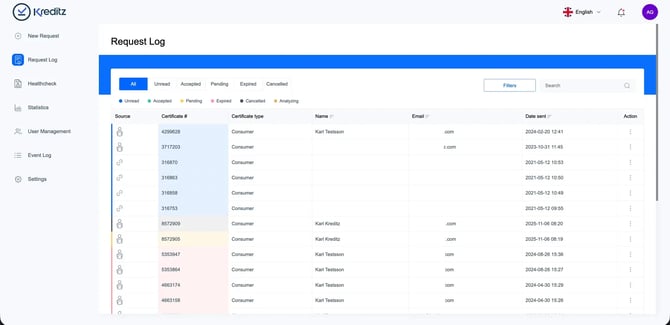
All – Tab
The All tab displays every request that has been created, regardless of its current status — whether Accepted, Pending, Cancelled, or any other state.
Requests are shown in descending order, with the most recent requests displayed at the top. Unread requests are displayed at the top, followed by accepted, pending, expired, and cancelled requests.
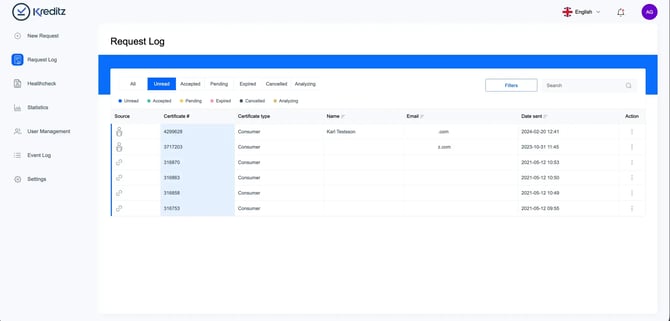
Unread - Tab
The Unread tab displays all requests that have been Accepted but not yet opened by any Vista user.
These accepted-but-unviewed requests are listed in descending order, with the most recently sent requests shown at the top.
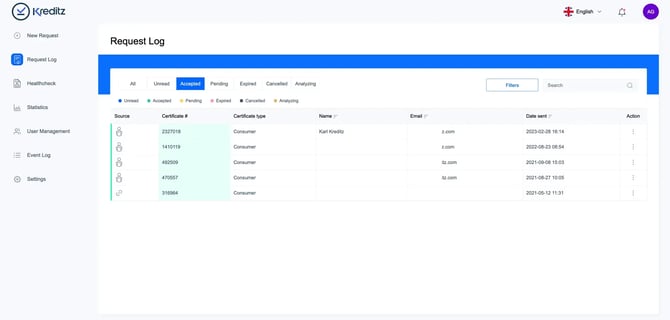
Accepted - Tab
The Accepted tab lists all requests that have been opened — these accepted requests are the certificates.
They are displayed from the most recent to the oldest, in descending order.
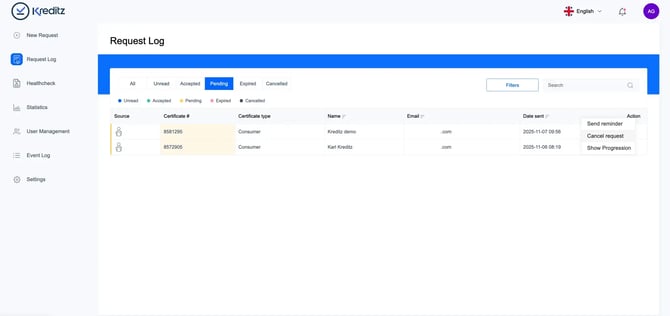
Pending - Tab
The Pending tab displays all requests that have been sent but are still awaiting action from the end user. This means the request has been created and delivered, but the user has not yet connected to any bank.
By using the three-dot (…) menu, you can:
- Send a manual reminder via email or SMS (based on the original delivery method)
- Cancel the request (the link will become invalid)
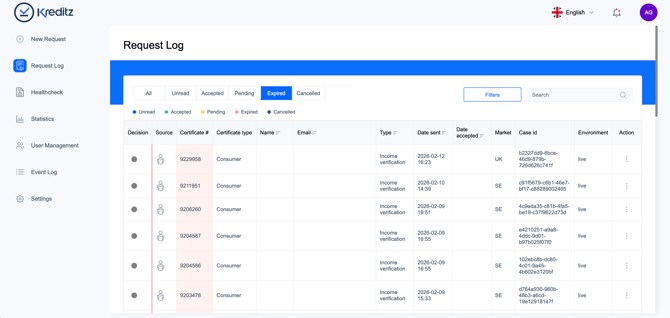
Expired - Tab
The Pending tab contains all requests that have been sent to the end user but where no bank connection has yet been completed.
If the end user does not connect their bank(s) within a specified period of time, the request will automatically expire. The expiration time is configured in Settings.
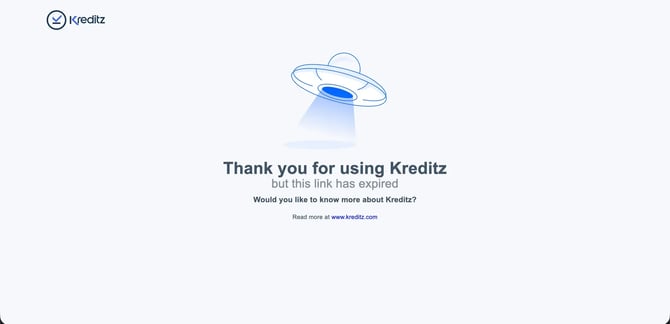
When a request expires, the link previously sent to the end user becomes invalid. If the end user clicks the link to an expired request, they will be redirected to a page informing them that the request has expired.
Cancelled - Tab
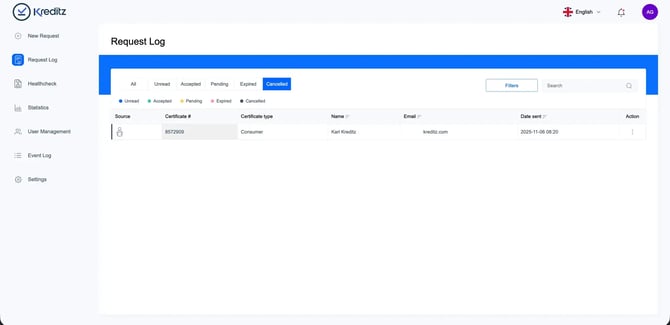
The Cancelled tab contains all requests that have been cancelled by Vista users.
When a request is cancelled, the link previously sent to the end user becomes invalid. If the end user clicks the link to a cancelled request, they will be redirected to a page notifying them that the request has been cancelled.
Cancelled – Expired Page
The expired page shown for cancelled requests also appears for requests that were never completed by the end user before the expiration date.
The expiration period is configured in Settings → Basic Settings → Due Date. For more details, see Settings.
Filter
The Filter function allows you to narrow down the list of requests to quickly find specific entries.
You can filter requests based on criteria such as:
-
Source (Manual Request, Generic Link, API, iFrame, External Payload, Partner Fetch)
-
Date range
-
Request Type (Business or Consumer)
-
Market
Using filters helps you focus on relevant requests, especially when managing a high volume of cases.
Search
The Search function enables you to quickly locate a specific request within the Request Log.
You can search using:
-
End user name
-
SSN
-
Email address
-
Internal reference (if used)
This feature is especially useful when handling customer inquiries and needing to quickly retrieve a specific request or certificate.