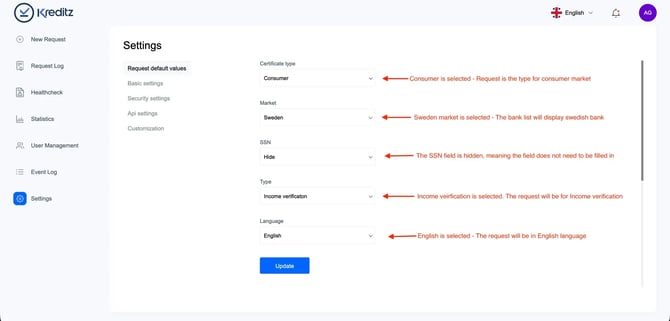
Request Default Values
Request Default Values allow you to pre-configure the fields used in the New Request form. Instead of manually selecting options such as Certificate Type, Market or Language each time a request is created, these fields can be automatically pre-filled based on the settings defined here.
By setting default values, Vista users can send new requests faster, with fewer steps and reduced risk of input errors.
New Request Without Preset Values
When no default values are configured in Settings → Request Default Values, all fields in the New Request section appear empty or unselected. This means the Vista user must manually choose options such as Market, Certificate Type, and Language before sending a request.
New Request With Preset Values
When default values have been configured in Settings, the corresponding fields in the New Request section are automatically pre-filled. This allows Vista users to send requests more quickly, without needing to manually select these options each time.
Faster Request Creation
With default values applied, Vista users can send out requests directly from the New Request section without manually filling in these fields. The preset values are automatically applied, streamlining the process and reducing the risk of errors.
|
Setting |
Values |
Description |
|
Certificate Type |
Certificate Type / Consumer / Corporate |
Determines whether the request is intended for a Consumer or Corporate end user. |
|
Market |
Choose Market / Enabled Markets |
Allows the user to manually select a market. The dropdown shows the markets enabled for the account. |
|
SSN |
Choose SSN / Show / Hide |
Choose SSN: SSN field is visible but greyed out (not editable). |
|
Type |
Income Verification / Account Verification |
Income Verification: Fetches all available financial data. Account Verification: Fetches only account name, number, and balance. (Only available if included in the contract.) |
|
Language |
Choose Language / Enabled Languages |
Determines the language used for both the request and the end-user flow. Only the enabled languages appear in the dropdown. |
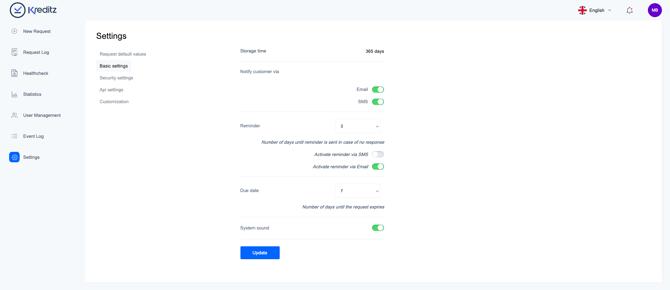
Basic Settings
These settings control how requests behave, how data is stored, and how end-users are notified.
|
Setting |
Values |
Description |
|
Storage Time |
Permanent / Days |
Determines how long certificates are stored in the database. |
|
Notify Customer Via |
Email / SMS |
Select whether requests are sent via Email or SMS. |
|
Reminder |
1–30 Days |
Sets when a reminder is automatically sent if an end-user hasn’t responded. |
|
Activate Reminder via SMS |
Enable / Disable |
Sends reminder by SMS. |
|
Activate Reminder via Email |
Enable / Disable |
Sends reminder by Email. |
|
Due Date |
1–30 Days |
Determines how long the request link remains valid before expiring. |
|
System Sound |
Enable / Disable |
Plays a ping sound when a request enters the Accepted state in the Request Log. |
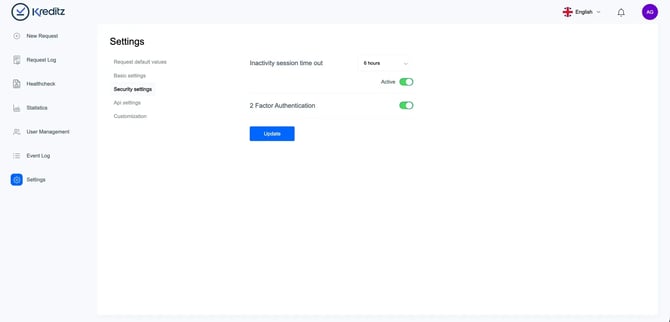
Security Settings
Security Settings allow Administrators to define session rules and authentication requirements.
|
Setting |
Value |
Description |
|
Inactivity Session Timeout |
10m, 15m, 45m, 1h, 2h, 3h, 6h, 12h, 24h |
Automatically logs the user out after the selected period of inactivity. |
|
2-Factor Authentication |
Enable / Disable |
Requires users to enter a one-time verification code (sent via email) during login. |
API Settings
This section contains configuration options for the API and the iFrame integration.
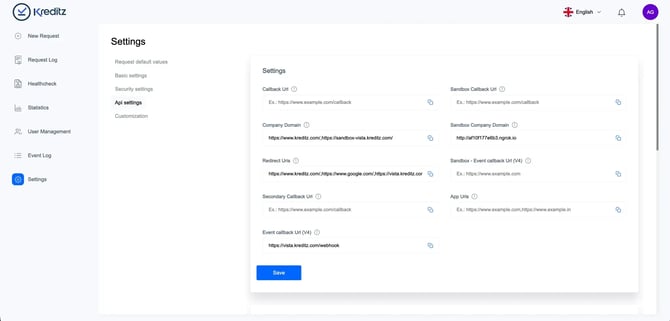
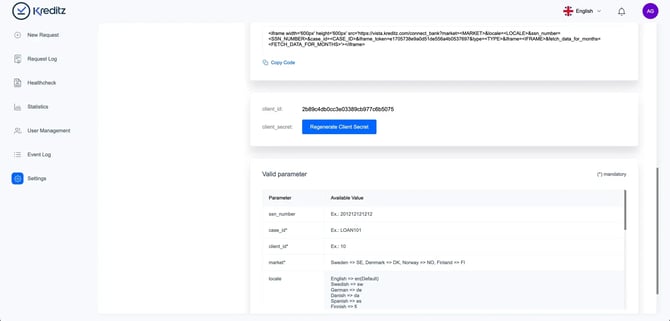
💡 For detailed technical information and implementation instructions, refer to the API Integration Guide.
Customization
These settings allow you to customize Business Rules, Categories, and the Request Log.
Business Rules
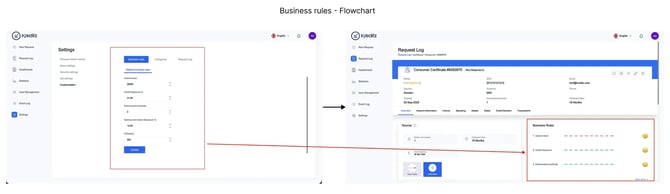
Business Rules define the thresholds and limits that administrators consider acceptable. When a value exceeds or falls below these thresholds, it is highlighted in the certificate’s Overview tab to draw attention to potential issues.
|
Rule |
Default Value |
Description |
|
Income level |
28 000 |
If the Income Level falls below the configured threshold, it will be highlighted in red. |
|
Credit Exposure |
31% |
If the Credit Exposure exceeds 31%, it will be highlighted in red. Credit exposure is calculated based on all identified loan-related transactions, including instant loans, car loans, and consumer loans. |
|
Enforcement Authority |
0 |
Highlighted in red if any transactions are identified above the configured threshold. For example, Enforcement Authority refers to agencies such as Kronofogden in Sweden. |
|
Games and Casino Exposure % |
10% |
f the percentage of identified Games and Casino transactions exceeds 10%, it will be highlighted in red. |
|
Collection |
500 - Sum |
If transactions are identified as Collection transactions and the total amount exceeds 500 (in the account’s currency), it will be highlighted in red. |
Please note that the purpose of the Business Rules is to provide a clear overview of the end user’s financial situation, based on the thresholds and levels you configure. They are separate from any Policy Rules implemented in Credit Decision.
Categories
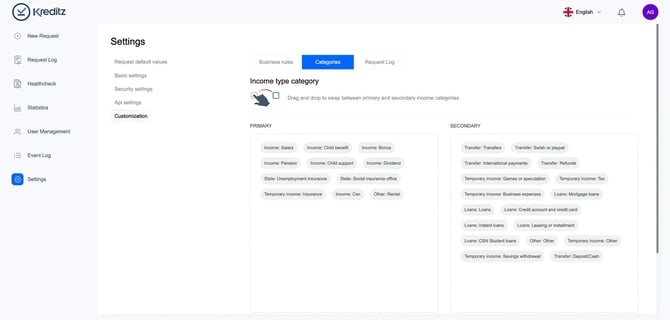
The Categories settings allow you to define which income categories should be counted as Primary or Secondary income.
For example, if the categories Income – Salary, Income – Child Benefits, and Income – Bonus are placed under Primary Income, then all incoming transactions identified as Salary, Child Benefits, or Bonus will be classified as primary income.
Vista Administrators can easily organize these by dragging and dropping categories into either the Primary or Secondary income lists.
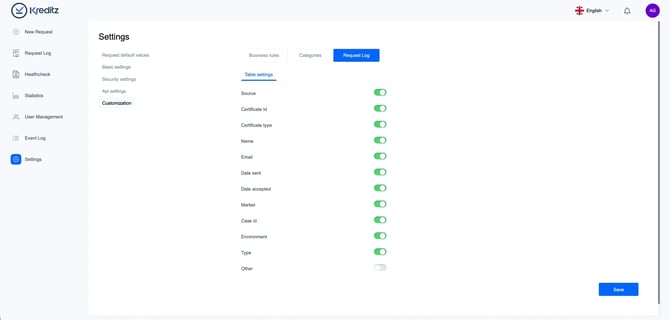
Request Log
These settings allow you to customize the Request Log list. You can choose which columns should be visible in the Request Log, enabling you to tailor the view to your workflow and information needs.