
Send a Request
Your request will be delivered to the end user based on the delivery method you select.
Once all required (and any optional) fields have been completed, click Send to issue the request.
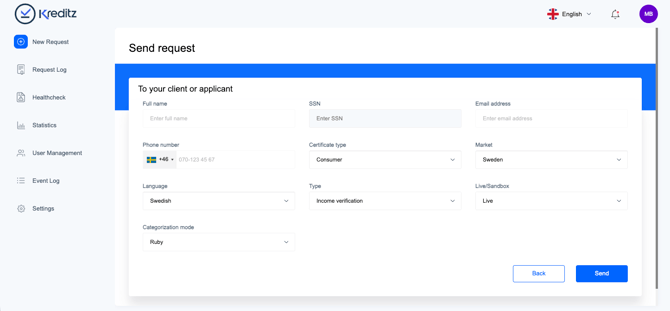
The New Request Form Fields
All required fields must be completed before a request can be sent. Some fields are always mandatory, while others may appear as optional depending on your account setup and configurations.
The table below provides an overview of the mandatory and optional fields included in the New Request form.
|
Field |
Required |
Optional |
Summary |
|
Full Name |
Yes |
- |
The name of the end user who will receive the request |
|
SSN |
- |
Yes |
The SSN (Personnummer) field is used only for the Swedish market and does not apply to other markets. 💡 SSN can be made a required field in Settings → Request Default Values, 💡 SSN Pre-filling can be enabled in Settings. The SSN number is then automatically inserted into the flow. |
|
|
Yes — required if no phone number has been provided |
- |
The email address of the end user who will receive the request. This field is not mandatory if a valid phone number has been entered in the Phone Number field. Requests can be sent via email, SMS, or both simultaneously. |
|
Phone Number |
Yes — required if no Email address has been provided |
- |
The phone number of the end user who will receive the request. This field is not mandatory if a valid email address has been entered in the Email field. Requests can be sent via SMS, email, or both simultaneously. |
|
Certificate Type |
Yes |
- |
Select whether the request is intended for a consumer end user or a corporate end user. ❗ Note: Corporate Type is available only if this product has been included in the sales contract. |
|
Market |
Yes |
- |
Select the market the request should be sent to. The chosen market determines which banks will be available for the end user. 🔍 For example, if Sweden is selected, the end user will only see Swedish banks when connecting. |
|
Language |
Yes |
- |
Select the language in which the request will be sent to the end user. 🔍 For example, if English is selected, the SMS, email, and the entire end-user flow will be presented in English. |
|
Live/Sandbox |
Yes |
- |
If Live is selected, the request becomes a real, operational request where the end user connects to their actual bank accounts. If Sandbox is selected, you can test the entire end-user flow without using real bank data. In Sandbox mode, the end user can connect SEB or Swedbank in a simulated environment. A certificate is then generated using sandbox (dummy) data. |
Request Status
After a request is sent, it enters Pending status.
A request remains pending until the end user connects to their bank and the bank data is successfully retrieved and processed by Kreditz.
Once this process is complete, the request becomes an Accepted request - also known as a certificate.
For more information about certificates, see Certificates.