Event log
The Event Log gives you a complete overview of activity within your account. It tracks every action taken by users, helping you stay confident about security and maintain full visibility across your organization.
Event List and Default Filters
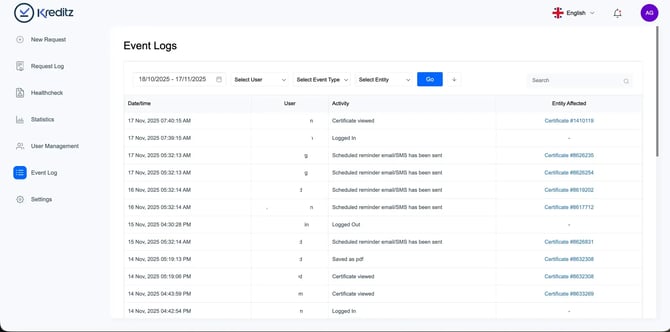
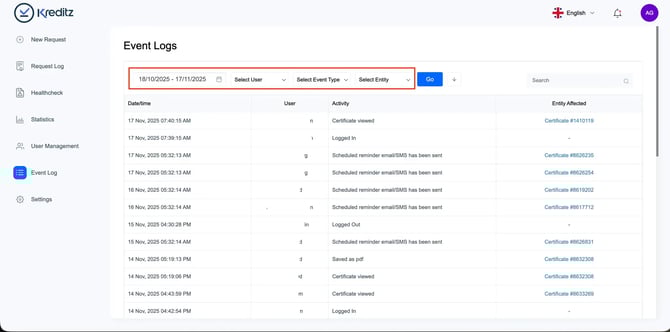
All events are displayed in a list format. By default, the following filters are applied:
-
Date Range: Last 30 days
-
User: All users
-
Event Type: All event types
-
Entity: All entities
Adjusting Event Log Filters
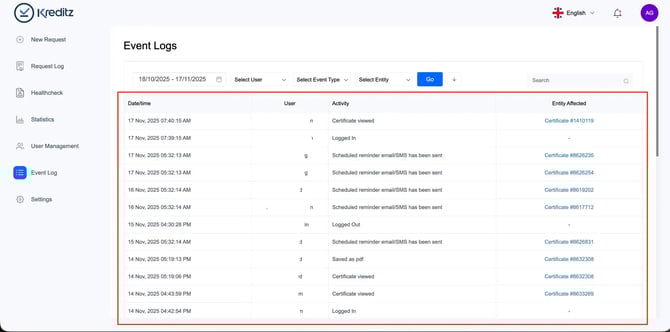
You can customize the filters to display only the data that’s relevant to your search. You can adjust:
-
Date Range Selector – Choose a specific date range to review events.
-
Select User – Filter events for a specific user.
-
Select Event Type – Choose which types of events to display (e.g., login actions such as Logged in or Logged out).
-
Select Entity – Filter by entity type. For example, selecting Certificate will display only certificate-related events.
💡 Tip: After selecting your filters, click Go to apply them and refresh the results.
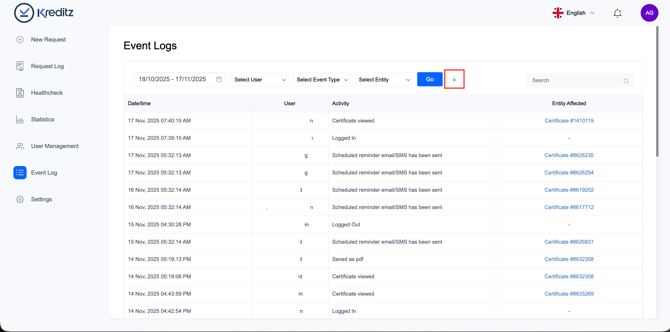
Downloading Results
By clicking the Arrow button, you can download the logs as a CSV or PDF file.