
Set Password
When you’re invited to Vista, you’ll receive an email invitation to your account that includes a link for setting your new password.
Click on "Set Password" to continue.
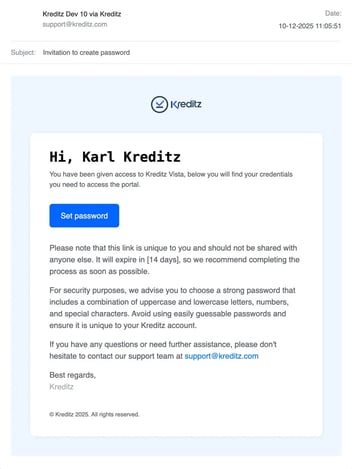 When you click the link in the email, you will be taken to the Vista “Set Password” page. Make sure to enter the same email address where you received the “Invitation to create password” email.
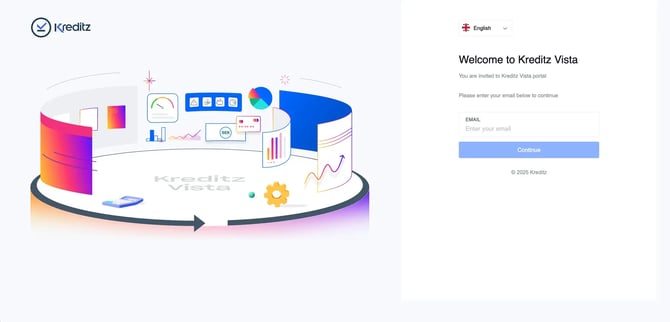
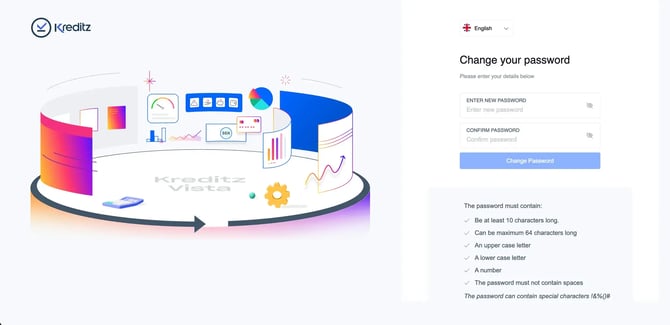
After entering your email, you will be taken to the Change Password page.
Here, you will create your new password. As you type, each password requirement will be validated. When a requirement is fulfilled, it will be marked as approved.
Once all requirements are met, the “Change password” button becomes available. Click it to complete the process.
Password requirements
Your password must:
-
Contain at least 10 characters
-
Not exceed 64 characters
-
Include one uppercase letter
-
Include one lowercase letter
-
Include one number
-
Contain no spaces
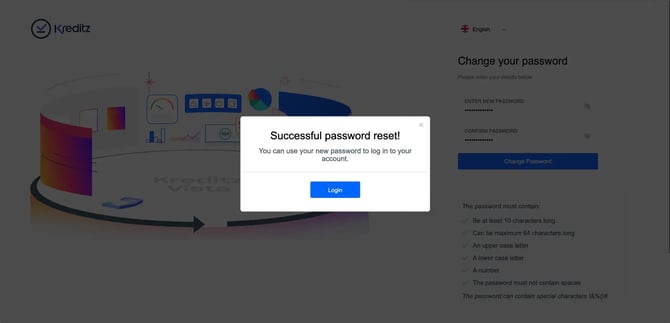
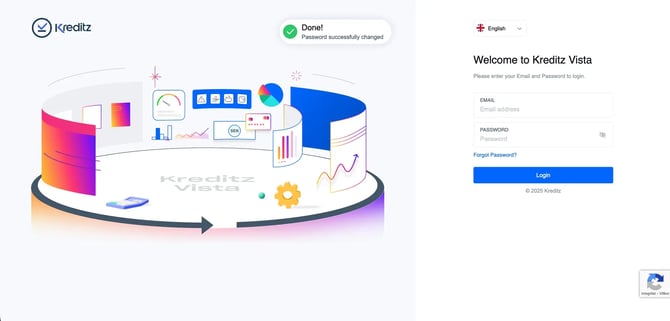
After your password has been updated, you will see a “Successful password reset” confirmation.
Click “Login” to proceed to the Vista login page.
Next, you will arrive at the Vista Login page. Use your email and your newly created password to log in.
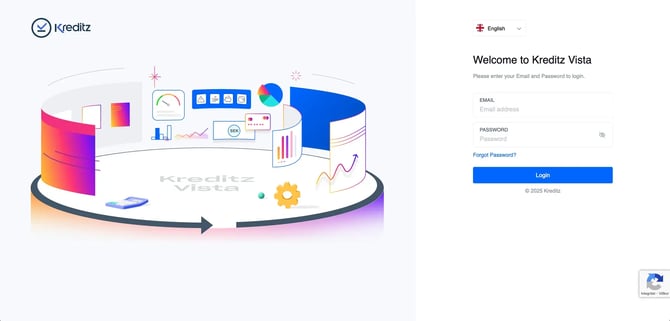
Reset Password
If you’ve forgotten your password, don’t worry — you can reset it directly from the login page.
Simply click the “Forgot password?” link found above the “Login” button.
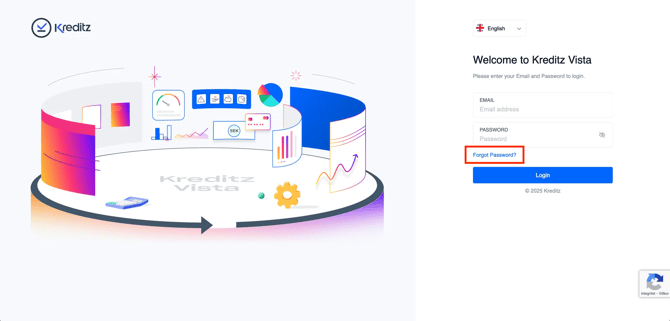
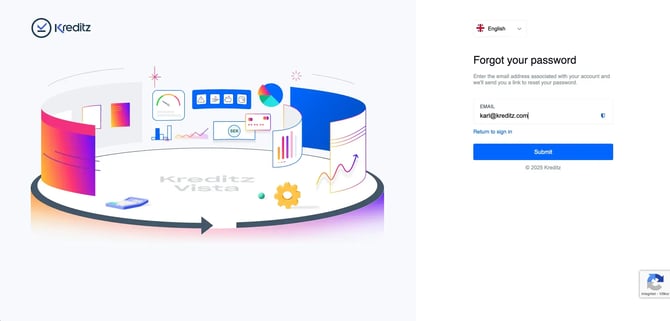
After clicking the link, you will be taken to the “Forgotten password” page.
Enter the email address associated with your Vista account to receive a password reset link.
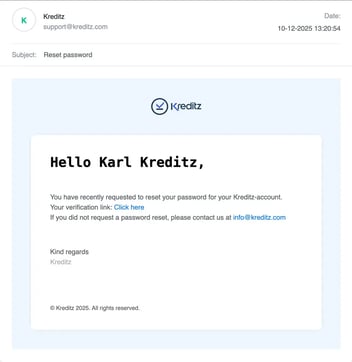
You’ll receive an email with a link to reset your password.
Click the link, and you will be taken to the “Change your password” page.
Next, you’ll arrive at Vista’s Change Password page.
Enter your new password, following the requirements shown on the screen. The system will indicate in green when each requirement is met.
When all requirements are approved, click “Change password”. You will automatically be taken to the Login page.
Password requirements
Your password must:
-
Include at least 10 characters
-
Not exceed 64 characters
-
Contain one uppercase letter
-
Contain one lowercase letter
-
Contain one number
-
Not contain spaces
Vista will display a message confirming that your password has been reset.
You can now login using your email and newly updated password.
If you experience any issues creating an account or logging in despite following the steps outlined above, please contact support@kreditz.com.